Official App Store Listing

Shadowrocket Download & Verification

Official product page Download on the App Store

Shadowrocket is a paid app for Apple platforms. Purchases, installation, updates, and restoring purchases are handled through the App Store. After opening the product page, verify the developer, official icon, and app ID, then confirm the current price and compatibility shown by the storefront.

Shadow Launch Technology Limited App ID 932747118 $2.99 one-time purchase iPhone iPad
Storefront and Account Region

Confirm the App Store region linked to your Apple ID first

Search results are determined by the country or region linked to your Apple ID. The app is not available in the mainland China storefront, so accounts in different regions may see different storefront content even on devices using the same language.

Check the current account region

On iPhone or iPad, open Settings, tap your Apple ID name at the top, then go to Media & Purchases and View Account to check Country/Region. The system may request your device passcode, Face ID, or Touch ID. The country or region shown there is the storefront your Apple ID actually uses. Device language, time zone, and physical location do not replace this account setting.

You can also open the App Store, tap the account avatar in the upper-right corner, and review payment information, purchase history, and region status. If the Shadowrocket product page says the item is unavailable, return to the account settings and verify the region instead of repeatedly changing search terms. Enter the full product name, Shadowrocket, and use the developer name and app ID to confirm the result.

Settings Apple ID Media & Purchases Country/Region
Purchase & Authenticity

Compare the developer, official icon, and app ID

Do not rely on the name alone. The Shadowrocket product page should show the developer Shadow Launch Technology Limited, the official icon, and app ID 932747118.

Three-point verification

  1. Check the developer name

    Find the developer in the app information section of the App Store product page. The full name must be Shadow Launch Technology Limited. The word order and spelling must match exactly; do not rely on similar words or a similar display name.

  2. Compare the official icon

    The official icon has a white background and a rocket graphic outlined in blue-purple. It is a useful quick reference, but the image may look slightly different at different display sizes, so continue by checking the developer and app ID.

  3. Check the product page URL

    Shadowrocket’s app ID is 932747118, and the product page URL ends with id932747118. The app ID is a more stable identifier than the name. Even if search results show similar names, rely on this number and the developer name.

After all three checks match, review the paid button, current storefront currency, compatibility, and privacy information. The US storefront commonly shows a $2.99 one-time purchase; other storefronts use local currencies. The actual charge is determined by the App Store page at the time of purchase.

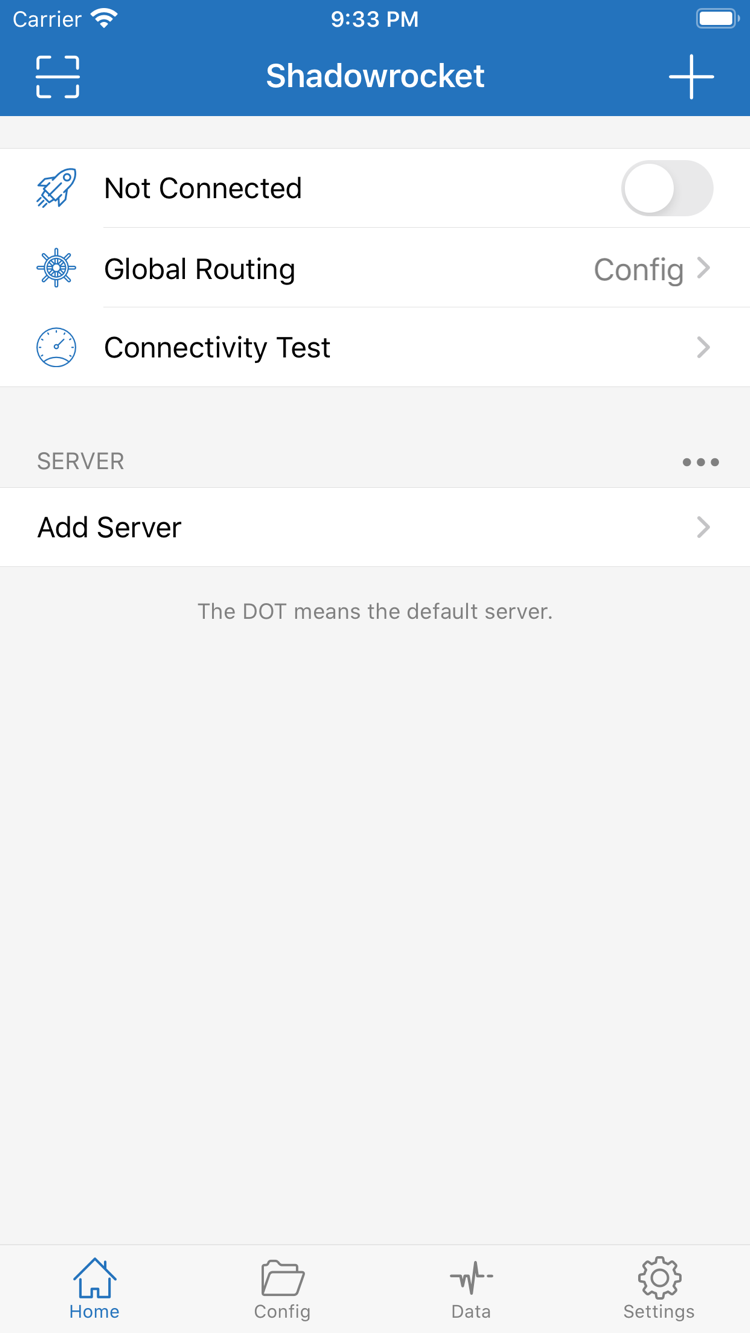
Shadowrocket official App Store screenshot of the Home page, showing Not Connected, Global Routing, Connectivity Test, SERVER, and Add Server
Home page: shows Not Connected, Global Routing, Connectivity Test, SERVER, and Add Server.
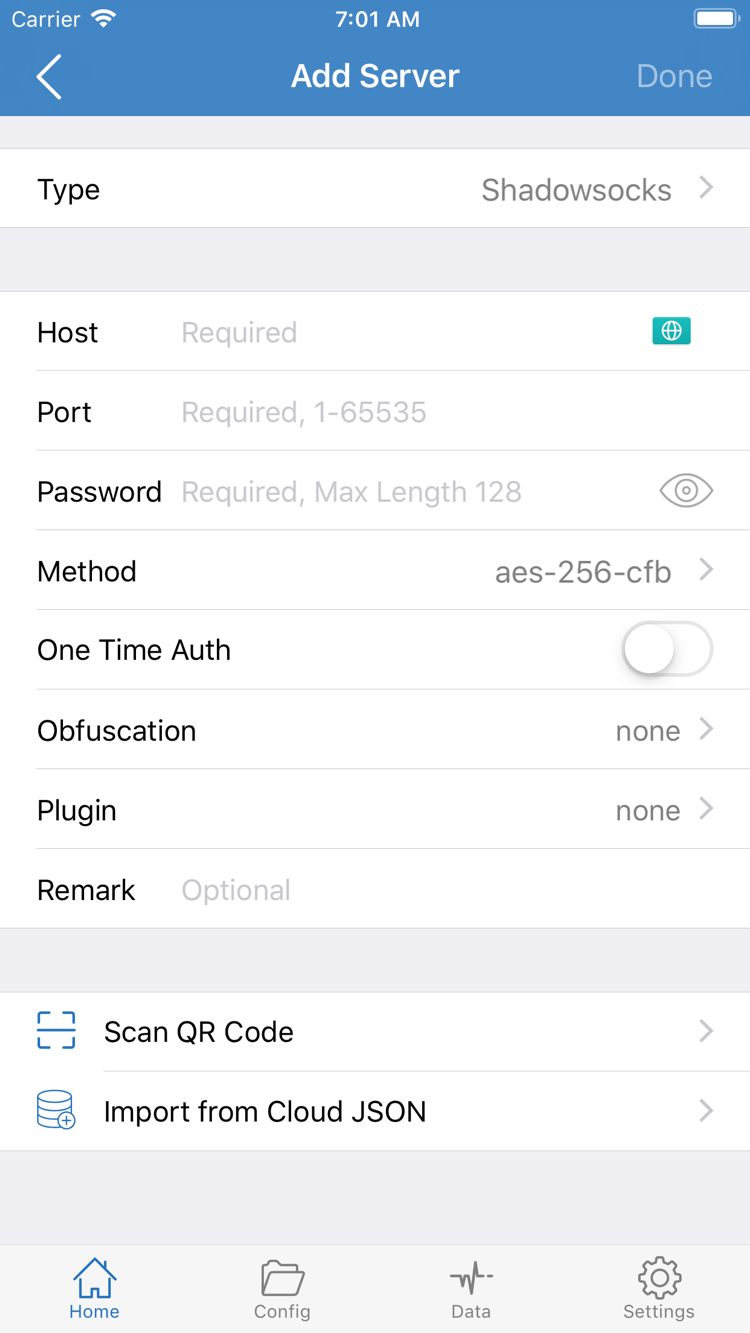
Shadowrocket official App Store screenshot of the Add Server page, showing Type, Host, Port, Password, Method, Scan QR Code, and Import from Cloud JSON
Add Server page: shows connection fields plus Scan QR Code and Import from Cloud JSON.

The images above were uploaded to the App Store by the developer to help identify the interface structure after installation. In-app wording and layout may change with the current storefront version; the Shadowrocket interface on your device is authoritative.

iPhone Guide

Buying, installing, and opening Shadowrocket on iPhone

Sign in to the App Store with the Apple ID you intend to use for the purchase, then complete the one-time payment from the verified product page. System requirements are determined by the App Store page, which should be your reference before installation.

Before purchase

Confirm that the App Store account at the top is the Apple ID whose purchase history you plan to keep, then check the developer name, app ID, price, currency, and compatibility on the product page. If the displayed region or currency is unexpected, return to the account page and verify the country or region before confirming payment.

The purchase is associated with the Apple ID, not permanently with one iPhone. Keeping the correct account credentials and Apple purchase record is therefore more important than remembering a particular device state. The product page currently lists iOS 13.0 or later, but this should not be treated as a permanent requirement; always follow the App Store page at installation time.

First launch

After installation, open Shadowrocket. The first time you enable the connection switch, the system displays a prompt to add a VPN configuration. This is Apple’s confirmation step for allowing the network extension to operate, and it may require your device passcode, Face ID, or Touch ID. Read the system prompt and confirm it yourself.

Authorization only configures the client’s connection in the system; it does not create server information automatically. You must then import your existing subscription or server information, select the relevant item in Home, check whether Global Routing uses Config, Proxy, or Direct, enable the connection switch, and verify actual access.

What to check after installation

In Home, first check the connection status at the top, Global Routing, and the currently selected server. To add existing server information, open Add Server and enter Type, Host, Port, Password, and Method from your own data. If you already have a subscription, use the relevant Subscribe entry in the app. This guide does not generate these parameters.

If the connection switch will not stay on, check whether the system has allowed the VPN configuration and whether another network configuration is using the connection. If the connection succeeds but webpages do not load, check server availability, the Global Routing mode, DNS, and rule matches in order. Successful installation only confirms that the app is on the device; it does not validate connection parameters or rules.
iPad Guide

View purchases on iPad with the same Apple ID

When iPhone and iPad use the same Apple ID, you can find Shadowrocket in the App Store purchase history. Whether it appears as purchased and whether it can be installed on the current device are determined by the account record and the App Store page.

Reinstall on iPad

Open the App Store on iPad and confirm that you are signed in with the Apple ID used to purchase Shadowrocket. Tap the account avatar, open purchased items, and search for Shadowrocket. If the product page recognizes the purchase, it will show a redownload option. If the price still appears, do not confirm payment again; check the account, country or region, and purchase history first.

The first connection after installation also requires system authorization for the VPN configuration. The wider iPad display may arrange lists, edit forms, or sidebars differently from iPhone, but interface labels and core behavior remain aligned across Home, Config, Global Routing, Add Server, Settings, and Data. Use the English interface labels to locate features rather than relying on their absolute screen positions.

Sync and re-import

App Store purchase records and connection configuration are separate types of information. The purchased status allows you to reinstall the client; your existing subscription, server information, Config, and rules must be restored from your own backup or service data. Even if iPad recognizes the purchase, connection content will not necessarily appear automatically on the new device.

After re-importing, check the server fields and subscription update time, then review the Global Routing mode. When using Config, also confirm that DOMAIN-SUFFIX, DOMAIN-KEYWORD, GEOIP, IP-CIDR, IP-CIDR6, and FINAL appear in the intended order. Checking these items before connecting helps distinguish configuration issues from installation issues.

Device transfer and restoration

Redownload from Purchased, then restore your own configuration

After changing devices, erasing a device, or deleting the app, restore the client purchase record first, then handle subscriptions, server information, and Config. Checking these as two separate stages makes problems easier to locate.

  1. 01

    Confirm the Apple ID used for the purchase

    On the new iPhone or iPad, check the signed-in account in Settings and the App Store account page. The purchase follows the Apple ID that completed payment. If the new device uses another account, Shadowrocket may not appear in purchased items even when the device belongs to the same person.

  2. 02

    Open App Store purchased items

    Open the App Store, tap the account avatar, enter purchased items, and search for Shadowrocket. Before using the redownload option, verify the developer Shadow Launch Technology Limited and app ID 932747118. When the purchase record is recognized correctly, another payment is usually unnecessary.

  3. 03

    Complete system authorization again

    The first time you enable the connection switch on a new device, the system may ask you to add a VPN configuration again. This is a separate authorization step for the new device. Follow the system prompt, then check whether the status at the top of Home changes normally.

  4. 04

    Import your existing subscription or server information

    Restore Subscribe, server fields, Config, and rules from your own backup or existing service data. Do not assume the import is complete; sample key fields such as Host, Port, and Method, and confirm that the final action uses the intended result among PROXY, DIRECT, and REJECT.

  5. 05

    Verify the connection and rule matches

    After enabling the connection, run a basic access test, then use Connectivity Test or Data to look for obvious problems. If the old device worked but the new one does not, compare system authorization, DNS, Global Routing, and configuration content first. Do not treat purchase restoration and network configuration as the same issue.

Price and purchase

One-time client purchase; no monthly app fee

The US App Store page commonly shows a $2.99 one-time purchase; other storefronts display local currencies. Before buying, rely on the product page and payment confirmation screen for the current account’s storefront.

A one-time purchase means that after you buy the app through the App Store, the purchase record is linked to that Apple ID. You can usually redownload Shadowrocket on eligible devices by viewing purchased items with the same account. App updates are also distributed through the App Store; automatic updates depend on the device’s App Store settings.

Currencies, tax displays, and payment methods may vary between storefronts. If the product page price changes, use the information shown by the system before confirming the purchase. This guide does not track version numbers, ratings, or download counts and does not use them to identify the app; verification is based on the developer name, official icon, and app ID.

Purchase & Installation FAQ

Shadowrocket Download FAQ

These questions cover storefront regions, device compatibility, purchase restoration, and the English interface. Expand an item to view the recommended steps.

Why can’t Shadowrocket be found in the App Store?

The country or region linked to your Apple ID determines the storefront content you see. The app is not available in the mainland China storefront. Go to Settings → Apple ID → Media & Purchases → Country/Region to check the account region, then open the Shadowrocket product page. Also verify the developer Shadow Launch Technology Limited and app ID 932747118; do not rely on the name alone.

Why can’t I download Shadowrocket after opening the product page?

Read the specific message currently shown by the App Store first. Common checks include whether the account region matches the product page, whether payment or billing information needs attention, whether the device meets the current compatibility requirements, and whether the App Store service is accessible. System requirements are determined by the App Store page, not old screenshots or instructions.

Do I have to pay again after switching to a new iPhone?

Sign in to the App Store with the same Apple ID used for the purchase. You can usually redownload the app from purchased items. If the page still shows a price, check the account, storefront country or region, and purchase history before doing anything else. After restoring the purchase, you still need to import your own subscription or server information.

Can I install Shadowrocket on iPad after buying it once?

iPhone and iPad can use the same Apple ID to view the purchase and install Shadowrocket. Lists and editing areas may be arranged differently on iPad because of the wider display, but key labels such as Home, Config, Global Routing, and Add Server remain aligned. Compatibility, system requirements, and purchase eligibility are determined by the App Store page.

Can Shadowrocket be installed on Mac, Apple TV, or Apple Vision?

The compatibility section of the same App Store product page lists Mac, Apple TV, and Apple Vision. Check the App Store page directly for availability, feature scope, whether the purchase applies across devices, and required system versions. Installation still starts from the same Shadowrocket product page.

What should I do if parts of the interface appear in English after installation?

Home, Config, Proxy, Direct, Global Routing, On Demand, Add Server, Subscribe, Connectivity Test, SERVER, Settings, and Data are interface labels used in the app. This guide keeps them in English so you can locate each item by name. Common Global Routing modes can be understood as configuration, proxy, and direct connection; the corresponding interface labels are Config, Proxy, and Direct.